Help & Documentation

Family Browser Help
Family Browser is an efficient add-on for integrating your Revit family libraries into the Autodesk Revit interface. This add-on was developed to spare you the tedious searching for and loading of families.
After you have loaded your families once, Family Browser is able to display your families in a tree structure. You can then easily place the families in the project by clicking the icons.
Our goal is to enable optimized family management and accelerate the design process in Autodesk Revit with this add-on.
Tutorial
Compatibility
Family Browser is compatible with the following Revit versions:
Autodesk Revit 2021
Autodesk Revit 2022
Autodesk Revit 2023
Autodesk Revit 2024
Autodesk Revit 2025
Autodesk Revit 2026
Autodesk Revit 2027
Setup
Family Browser is installed via the Revit App Store. If it is not possible for you to use it, you can contact us directly to obtain the add-on.
Requirements
Requirement for loading families
To integrate a folder into Family Browser, it must have one or more subfolders, which then contain the individual Revit families. After the “root folder” has been loaded, the add-on is able to display the Revit families in the individual subfolders in an ordered tree structure. It is possible to create multiple subfolders .
For each Revit family, an icon (.jpg or .png file) is required to represent the RFA file. Later, this icon will be displayed in the Revit user interface. The icon must be saved under the same name as the corresponding family so that the program can assign which icon belongs to which family.

Root folder

Contents of the root folder
Creating the images
In the Premium version, all icons are generated automatically. However, if required, you can still manually insert your own images in accordance with the following guidelines:
The image should be 32x32 pixels in size and 72 DPI. Different dimensions will result in a loss of quality or a reduced display size. A different DPI setting may affect the size of the image.
A line width of 1px is strongly recommended. Anything greater than 1px results in a wider line, which can lead to a blurred or fuzzy appearance, as the line does not lie exactly on the individual pixel boundaries. No specific programme is required.
You can easily select an icon with a single click. The corresponding RFA file can then be placed as many times as you like within your project.
It is possible to load several subfolders, which in turn contain several family files and icons. Clicking on the drop-down menu displays all loaded family folders. You can switch between families very quickly by selecting a different family folder.
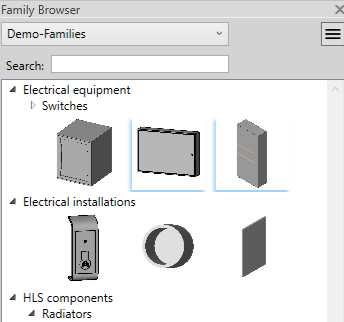
View for the families
Family Browser
The Family Browser
After you have downloaded Family Browser, a new tab named “Family Browser” appears in the Revit user interface .
If you want to see your families, simply click “Family Browser” in the “Tools” area . If you have feedback, criticism, or requests, you can click the “Feedback” button in the “Options” area to write us an email.
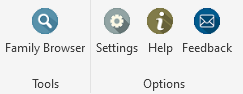
Tab: Family Browser
Settings
To load and unload folders, you must click “Settings” under the "Options" section.
To load a new family, click the upper green Add button. This will take you to your directory. You can now select the desired folder.
After a successful load, you will see the folder name under “Main family directory:”. By loading multiple family folders, you can later use the drop-down menu to switch between folders when selecting icons. To remove a loaded family, select the corresponding family folder in the drop-down menu and click the red Remove button.
If a family has more than one type, it is marked in blue in the lower left corner. In addition, a dialog appears before placing, which enables you to choose between the types.
You can switch between the types using the drop-down menu. After you click “Confirm”, you can place the selected family with the selected types in your project.
Multilingual support
In the “Language:” area, you see a drop-down menu that lists all currently available languages. By clicking the button to the right of it, a language file opens, which enables you to extend the program with additional languages.
When adding a new language, you must note that each column stands for a specific language. In the first row, enter the name of the respective language. Below, add the translations, where the first two columns are already configured for English and German. Make sure that in one row the same word appears only in another language. The order of the words must not be changed.
After adding a new language, you must save and close the language file. You can then see and select the new language in the drop-down menu. A language change is applied by the program when you click “Save".
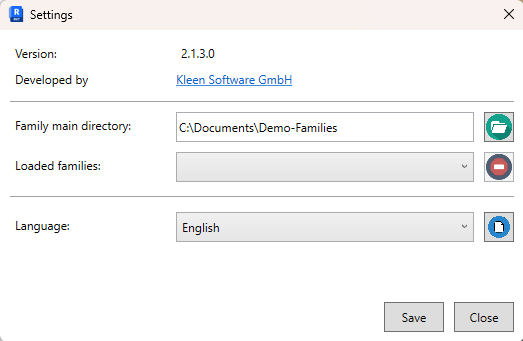
Settings dialog
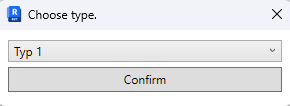
Selection of the family type
Advanced features in the Family Browser - Premium version
Family Browser has a Premium version for $5 per month, which provides a wide range of additional features to make using families in Revit easier.
View with many new features:
New display mode for icons
Display families without an icon
Marking of families with multiple types
Search function
Folder hierarchy
The advanced settings dialog:
Saving the main family directories
Image size
Overwriting families
Family view with many new features
New display mode for families
With the new version of Family Browser, it is now possible for users to use a new display mode for the icons. You can now switch between two views. The new view can display the icons as a list and additionally show the family names.
This representation improves clarity and leads to faster use of the families. Switching between the views is done via a button located in the upper right corner.
Family without an icon
Another new feature is that adding an icon is no longer mandatory when you use the list view. You can now also have only the RFA file in the family folder. Family Browser then shows only the family name in the view.
Note: This applies only to the list view, because in the row view the names are not displayed.
Marking of families with multiple types
In the view, families that have multiple family types are marked with a small blue corner . This visual marking enables the user to see at a glance whether a family has different types available for selection. This allows you to quickly determine before using a family whether alternative types exist, without having to open or inspect the family first.
This function makes work easier especially in complex projects, as it provides a better overview of the available family types and enables more efficient selection.
Search function
Another time-saving function for finding loaded families is the search function. It enables users to search quickly and efficiently for specific families and folders in the library and integrate them effortlessly into your Revit project.
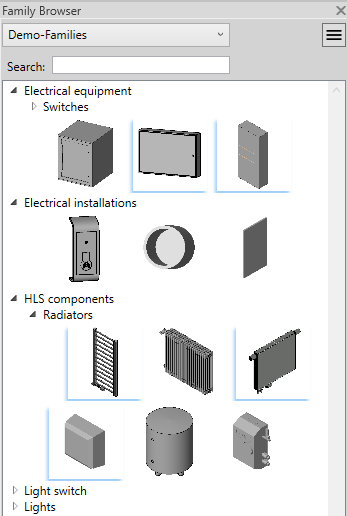
Row view
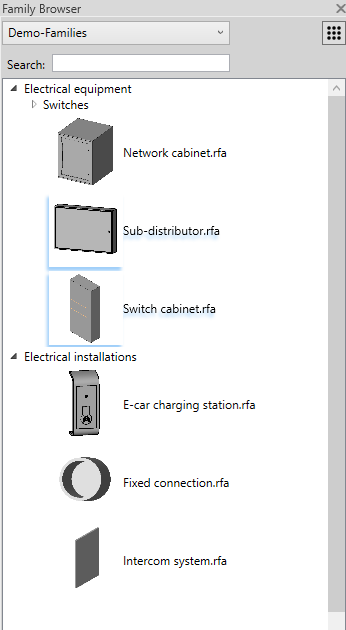
List view
Folder hierarchy
For even better structuring, all families are detected recursively in all folders of the specified main directory. This means, as shown in the program excerpt above, that it is now possible not only to place families and icons directly in subfolders, but also to create additional folders, which in turn can contain additional families and icons.
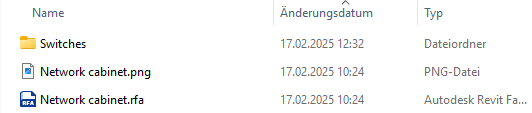
Example of the contents of a family folder
The advanced settings dialog
Saving the main family directories
In the “File with family paths:” area, the latest function offers the option to load a TXT file from your directories into the program. The TXT file will henceforth be used as the storage location for the loaded families . There is an option to load different TXT files, each containing different loaded families .
With this flexibility, you can select the appropriate TXT file as needed, which contains the desired main family directories. If you do not use a TXT file, the program stores the main family directories in an internal file.
Image size
Below the “Language:” area is the “Image size:” area. This refers to the size of the family icons in the view. By moving the slider, you can adjust the icon size.
Please note that the change only takes effect in the program when you click “Save”.
Overwriting families
Do you often make changes to your families? You can now enable overwriting families in the settings dialog. After selecting an overwritten family, all already placed family instances of this family are updated in your project.
As long as Overwrite is enabled, the program checks for changes each time families are placed.
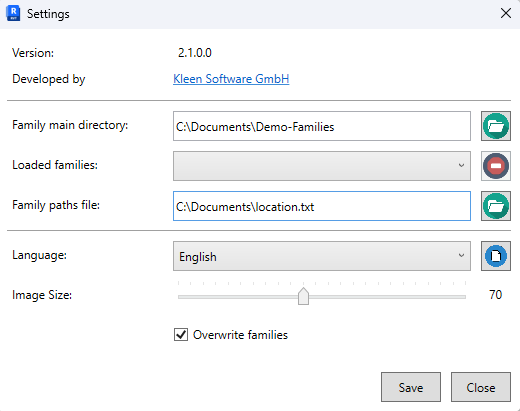
Settings dialog